
Server Reliability

Alt title: servers for dummies
This is not a guide, or tutorial, what I’m about to write should be taken as a general thoughts and ideas and a one way conversation to anyone interested in self-hosting, who has done the bare minimum to self-host before and may have come across disorganization, data loss and doubt when it comes to relying on your own server alone. I will not go over what I deem obvious, OS and software installations, how to navigate and edit file on a headless server and alike, I will go over programs and configurations.
At the very end of my post I go over what I self-host in case you’re curious.
By the end of this post, I’ll have touched on the following subjects
- Overview of how storage media works under linux and how to mount them.
- Storage media metadata and how to mount them on startup(fstab).
- What is a Container.
- How docker works and why use it in this scenario.
- DNS, Proxies, reverse proxies and cloudflare.
Chapter 1: Server and Storage
I’m going through the steps I made to ensure a stable server experience, what is the bare minimum and how I built my foundation. All you requires is:
- Server: Single board computer, an old laptop or your own daily driver, you’ll need a CPU to self-host, be aware of it’s CPU architecture and resources.
- Storage: I’ll be going over how to properly maintain your server, have at least 2 different media to hold backups of, that is, an SD card and a flashdrive, 2 different SSDs, HDD and a third-party cloud storage, it’s up to you.
Of course you’ll need more the more you plan on doing, internet access, a domain, reverse proxies and tunnels if you need those, but I’ll get there when I get there, and for now this is enough. The setup I’ll be referencing the guide on is my own single board computer, running debian(Linux) as the OS with a HDD dock attached to it via USB.
Bare minimum configuration for storages
If you were to connect a flashdrive to your computer, you’d get a notification letting you know the flashdrive is accessible somewhere in your computer, or maybe if you’re on linux asking you if you’d like to mount it somewhere. On a headless server however, whenever a non-internal storage driver is connected, it remains inaccessible until the user explicitly mounts it.
You can check for unmounted storage driver by checking /dev/ for new connections, each new driver is a file named sd with a letter and number attached at the end that represent a driver and it’s partitions.
ls /dev/ | grep sd # lists all files with names containing "sd"
sda   # sda is my microSD
sda1  # sda1 is the boot partition
sda2  # sda2 is my regular storage partition
sdb   # sdb is my USB flashdrive
You can try it yourself by running lsblk -f or blkid on your server and doing so again after connecting a flashdrive to it. Experiment using these commands and mount, use the -h flag or man [command], and continue after successfully mounting an external storage.
My current setup has an SSD mounted to /mnt/Backup, which sounds great but if I were to reboot my server, upon starting up, /mnt/Backup would not show up, and I would need to mount it again for it to show up, knowing this we’ll work on this foundation.
If you’re not aware, there is a configuration file on linux that handles mounting storage drives on startup, fstab(File System Table) is a very simple configuration file we can find on all linux computers under /etc/fstab, it’ll require admin access to edit and when we do we’ll be greeted by the following message:
# /etc/fstab: static file system information.
#
# Use 'blkid' to print the universally unique identifier for a device; this may
# be used with UUID= as a more robust way to name devices that works even if
# disks are added and removed. See fstab(5).
#
# <file system>             <mount point>  <type>  <options>  <dump>  <pass>
By now I hope you’re familiar enough with lsblk as we’ll need some of it’s information to start to add to this configuration file.
- file system: an specification, be it an UUID, PART-UUID or Label, we specify which one followed by it.
- mount point: where on our file system it’s going to mount at, if the whole path does not exist, it creates it on startup as well.
- type: the formatting of that storage (vfat, ext4, btrfs…).
- options: configuration of the mounting itself, such as noauto and nofail, you can find all of them and their description by reading the manual.
- dump: configures storage for another program, dump, and let it know if this storage needs to be dumped, set it to 0 to skip.
- pass: configures storage for another program, fsck, tells the order fsck will check the storage for errors, set it to 0 to skip.
Very well, with all these I’ll mount my flashdrive as such:
# <file system>                             <mount point>  <type>  <options>  <dump>  <pass>
PARTUUID=A1B1-C2D2                          /mnt/Backup/   vfat    nofail      0        2
#UUID=3f3b2a55-7d10-4a32-b58f-123456abcdef  /mnt/Backup/   ext4    nofail      0        2 #Example UUID
#LABEL=Backup                               /mnt/Backup/   btrfs   nofail      0        2 #Example Label
Most of it should be easy to figure out with the exception of maybe options, which I’ve set to nofail, if I were to use defaults, fstab would generate an error upon booting and not finding it, so if my backup flashdrive were to fail before my SD card did, it would refuse to boot the system, there aren’t many options but most of them are useful, be sure to read about them.
What we’ve just done is guarantee two different drivers are mounted on boot, one of which we’ll use of backups, a common strategy is the “3-2-1 backup strategy”, which asks 3 backups, on 2 different medias and 1 external backup, at the moment we have a setup that satisfies conditions 3 and 2, we’re able to have a total of 3 backups, 1 on the SD card and 2 on the flashdrive for example, and we are doing so on 2 different medias, but we’re still location bound to the server’s physical space, out data is in danger of any type of physical disruption to that server, there are innumerous ways to create a off-site backup, you can setup a second server and rsync your data over the internet, setup a onedrive or google drive account and find a way to have you data backed up, this is very much open to each user’s case, you may not even want that at all, the risk is up to you.
The very unorganized structure of data under Linux
Have you ever hosted anything before? Do you know where all the data is that you need to backup? I don’t think this was every figure out, not on Linux and not on Windows, where information is kept is always up to the developer, which leads to a greater amount of pain proportional to the more services you host. This is where I saw the real upside of Docker, which people champion as the bees knees.
When you create a docker, much of it’s data is only temporary, if you were to host a social media, every time you reboot your server, all your users would be gone, not good, it does also provide a way to link a folder on your server and share it with docker, making it so what used to be temporary data, will be stored permanently on your regular hard driver, the best part being, we can choose anywhere we want.
Let’s say my social media uses the path .config/my-social/users, and I have another photos service that uses .local/usr/share/photos, it can be a bit of a pain to have to look for where each of my services are storing data and have to put that in a script or manually copy and paste every time I want to make a backup, but by using volumes in docker, we can set it so those files are linked to somewhere easily reachable, let’s say: /home/my-server/my-social and /home/my-server/photos, making it so all are data is stored within a single folder, I find that very handy.
Chapter 2: Portainer and leading by example
This section goes over docker and container. You can do everything by terminal, but I don’t like using docker via the terminal, I find it cumbersome, so my recommendation is portainer, it’s a web front-end to administrate docker containers. The funny thing about portainer, it’s that itself runs inside a docker, so we’ll use it as an example on backing up date as well, the difference being we’ll bring it up manually and from there on out, other dockers by using it instead.
Bullet pointing docker
- Image: A docker image is a configured container with usually a single goal like hosting a service, you can built one yourself, use one from the web, or use one of the web as a base and work on it to better suit your needs.
- Entrypoint: When you start container, it has a single script file that start does what it needs to run it’s the container’s function like start a server.
- Volumes: When a container runs it creates a virtual environment for it, so it won’t have direct access to your files but also won’t keep a record of your changes, with volumes you can bind a folder on your host machine to one on your container to keep data persistent.
- Network: A private network for your containers, need 2 containers to talk to each other? Add them to the same network, configure as you need.
- Env: Environment variables, some scripts use environment variables to make it easier to configure
- Labels: It’s metadata, went unused in my hobbyist time.
- Restart Policy: What happens if your container crashes? should it reboot by itself?
Back to portainer
Step-by-step guide on how to bring it up, if they haven’t changed their procedure yet, this command: docker volume create portainer_data will create a volume on docker’s default location, which I don’t like where it’s at, they all have ugly names and I won’t even bother going over it, you can specify your path doing something like this:
docker volume create portainer_data --driver local --opt type=ext4 --opt device=/home/my-server/portainer. which you’ll have to change to suit your specifications of course. In doubt? Check their documentation.
Playing around on portainer
Connect to it via your web-browser on <server_ip>:port, something like 192.168.1.6:9000. Select your local environment and checkout the templates, here’s a good exercise:
- Get a service up and running through portainer and connect to it
- Stop a container
- Change that docker’s volume location to your folder of choice for data
- Move the external port and try and connect to it using the new port
- Change that docker’s environment variables
- Add two dockers to the same network.
Now work on it, time to bring up servers and configure them to have their files all localized in a single folder!
Chapter 3: Backing up to Backup
By now we have both a way of centralizing all data in a single place and a guarantee that whenever the server starts, external storage drivers are loaded at boot. Our journey is coming to an end, we need to tie this bow neatly, but how?
Well, it depends where we want to go with the solution, we’re running dockers so you could make yourself one that creates a cronjob run rsync from time to time, but you can also run a ready to go project, such as duplicati or Urback, or simply run rsync from time to time directly from the host computer. I’ve ran an rsync backup strategy for months before moving to duplicati, for the simplest of backups I recommend rsync over a cron job, it’s so idiotically simple to setup it’s not even worth making a docker for it. I moved to duplicati for better control of nested folders that need to be excluded from the backup process, which I later found out has other nice features such as limiting CPU usage during the backup process and configuring how compressed the final backup will be.
On the backup end, I would recommend double checking the first couple of times a backup is run, don’t rely on a single backup if you can, maybe even have a backup on a family or friends house updated every month or year in case of, god forbid, a physical catastrophe that damages your setup, it’s the last step of the 3-2-1 backup strategy and it’s up to you to enforce it. A good final exercise when you have a backup up and running is to simulate you having to use your backup, maybe install a fresh OS on a different microSD and try to get your servers back up.
Chapter 4: Making it look nice is optional
For the longest time what I did was simply open ports on my modem and input my ip address on whatever app or minecraft server I was hosting, this works and for a private server is possibly the simplest and best solution. But having things look nice isn’t purely eye candy, depending on how you do it it may serve a purpose.
Have you bought your domain yet? Just in case you don’t know, it’s not hard, your IP is a set of numbers, a DNS(Domain name system) is a service that translate words into an IP, so when you enter www.mosskoi.com you are actually asking a DNS server what those words mean, and when the server replies 123.321.213.231, you connect to it instead.
And since we’re going the extra mile to make it pretty, if you intend on having strangers use your services it may come to you to use a proxy or a reverse-proxy, it’s a 10 minute read on it.
You can achieve a reverse proxy in different ways, cloudflare sets up proxies by default and reverse proxies can be set by using a zero trust service, which is nothing more than a inflexible VPN that only works over HTTP and HTTPS, the nice thing about it is that it sets up certifications for you as well. Fun fact about zero trust, you can have it run from a docker, which I recommend, from it running inside a docker you’d need to have it and whatever service you wish to reach on the same docker network and configure zero trust to connect to the service’s docker network IP and Port, since it’s how the dockerized tunnel sees it.
It’s pretty obvious I can’t deny cloudflare streamlines the process, and considering you can get all that for free it’s a nice way to familiarize yourself with all these concepts and put it in basic practice, but there is no such things as free lunch, so while I do believe it’s a nice alternative to get things going, I do wish to part ways with it, who knows, maybe I’ll write a post about it.
Anyway, here’s a list of things I see needing when I cross that bridge, which in turn is mostly all cloudflare provides.
- Owning a Domain
- Configure that domain on a DNS server to point it to your IP
- Configure a Proxy and having your requests go through it instead of your IP directly
- Configure a Reverse Proxy so you server is safe from DDoS attacks
- Configure server to not accept any traffic that doesn't go through the proxy
- Automate DNS configuration to point to a new IP whenever your server's IP change
Which the last one brings me to one last point, if you’re serving from home, your ISP most likely changes your IP address from time to time, maybe on modem reboot, which would de-configure your DNS, there are scripts, even ones in docker, that queries your IP from time to time and if it changes it updates cloudflare, if you were to use other services, I’m sure there are scripts out there that do it, if not, make one!
Chapter 5: Future work
I’m very bad when it comes to electricity, I never trust myself to not set fire to the whole neighborhood, but one idea I would love to work on is some sort of off the grid power supply to use as backup for a self hosted server.
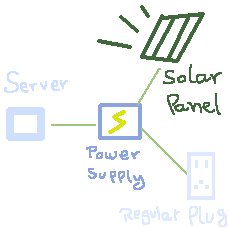
Where some sort of supplier with a battery that would always be charged by an exterior power supplier, such as a solar panel, when that battery is charged it uses the solar panel’s provided power on the server directly, if the solar panel is not capable of handling the power demand the battery would activate giving it the juice it needs to operate. Finally, if the battery is drained and there is no sunlight, it would then turn to a regular power plug to charge the battery and to supply power to the server.
Bonus: What I self host.
The story that drove me to get a good setup going is a bit funny, there is nothing noble about it, it’s video games. I, due to various sperg-y traits, don’t take care of my own data, and one of my Linux installations had 2 Dolphin emulator setups, one trough flatpak and another one a direct installation, well, I was playing Monster Hunter Tri through the flatpak installations, and one a sunny Sunday morning I tired of popOS! and decided to move to Kubuntu, losing my save in the process because I backed up the wrong Dolphin, and a Dark Souls 3 save as well since for whatever reason it doesn’t save the saves on steam’s servers. Very well, so I looked up a way to create my own steam save backup server, and lo and behold, there is a self hosted service for storage that does that.
so work started on the project I talk about in this post…
Portainer
Is being used to manage my dockers
Nextcloud
It’s a google drive or OneDrive self hosted alternative, it works exactly how you’d expect and the there’s a good amount of plugins, but more importantly, if you get their desktop client you can pair a local folder to a remote one to have them synced, so if I were to ask it to sync my Dark Souls 3 save folder to the cloud’s “Saves_backups/Dark Souls 3” folder, it would sync them so I would automatically have a backup of that save, and if I were to do that to all my emulation folder, which yes, it does take a bit of a setup, minimized by this script, I would only have to bother with setting up every time I set a new emulator up or change computers, not to mention that if I do the same on a steamdeck, I do automatically send the new saves to the cloud and download them on my computer for a as close to steam’s similar save file transition as you can get.
Gitea
When I was done with this project I had a couple of new script that I would want to save, naturally I logged into github for the first time in years only to be greeted by the reason I stopped using it, 2FA, it was already a pain when they decided you couldn’t use your user and password to commit anymore, but to force me to download an app to publish open source code is one step too far, so I started hosting my own git server, it’s dumb easy to get it set up with gitea.
BitWarden
At this point I had 3 services, and I was using the same password for all of them, which if I were to let other people use my services, which was the intention with Nextcloud, even if it’s people I trust, I don’t think it’s wise to use all the same passwords for my logins, and due to the hobbyist nature of this project, I wouldn’t want them to stress over using their passwords and it potentially getting leaked, so a self hosted password manager was inbound. get a client on my phone, an extension on my browser, and 128 character long passwords are easy to get going.
Duplicati
If I am to depend on a password manager I better not loose these passwords, while they are downloaded locally whenever you connect a client to it, I still would like backups, which I was doing with my own rsync scripts, but since then I started using Duplicati.
Navidrome
Duplicati makes it easy to ignore a particular nested folder, that folder for me is a user folder on a nextcloud account, I created a navidrome user, a “Musics” folder which is shared with all my nextcloud users so they can drop-in music and have it loaded directly to navidrome, and that path is mounted to it’s own separate SSD for music only, that folder I don’t want backed up by main main data and configuration backup. Navidrome is a music listening server, get a phone client or log in online and have as good as a listening experience can be in whatever format you prefer.
Final price
| Hardware | Price USD |
|---|---|
| Raspberry pi 5 4GB | $80 |
| MicroSD 64gb | $10 |
| Sata Bay 4 Slots | $99 |
| 2 1TB sata SSDs | $108 |
| Total | $297 |
Monthly power cost: ~$3 USD. Total: One time purchase of: $297 USD.
In contrast, the same level of features on paid services for what I self host at the moment:
| Service | Price USD |
|---|---|
| Google drive 1TB | $10 |
| Spotify premium | $12 |
| Github | $0 |
| VaultWarden | $0 |
| Total | $22 |
I think it’s fairly obvious that it pays itself after some months time, more so if you were to host a jellyfin server and kill your Netflix subscription.
Do you have to manually add music? Yes.
Would you have to manually add shows? Yes.
Can it be taken away from you?